Nowadays, email communication plays a vital role in everyone’s life. MS Outlook is the email management software that manages email on your local computer when you are offline. The graphical interface of MS Outlook is easy to use, therefore, it is widely used. In this blog, we will guide you on how to import PST files in Outlook. This blog will provide you with the easiest and best way to know how to import PST file in Outlook Windows 10; moreover, it will very easy process for you.
What is PST file?
PST (Personal Storage Table) is the file that stores data such as emails, calendars, contacts, notes, tasks, etc. It is a kind of a container that holds outlook data.
Why import PST files in Outlook?
Backup Of Outlook Data- PST files can be used as a back up of Outlook data. They can be used for backing up of emails when there are chances of data loss due to accidental deletion of files and hardware failures.
Email Management- MS Outlook better manages emails than other email clients and Outlook manages email with the use of PST files.
Read More: How to Save Outlook 2021, 2019, and 2016 Emails to Hard Drive?
Methods Of importing PST files
- Manual Method
- Automated Method
Manual Method
In the manual method we can import PST files using the import/ Export Wizard.
- Open Outlook and open the email profile associated with the OST file.
- Click on the File tab and then select Open & Export >> Import/Export.
- Select the option “Export to a file” and hit on Next.
- Now choose “Outlook Data File .pst” and press the Next button.
- Select the mailbox folder to export from.
- In the next step, select the destination for the output folder.
- Lastly, press the finish button and start the export process.
Automated Method
In the automated method we use third-party software such as eSoftTools Outlook PST recovery software. It can easily fix corrupted and damaged multiple PST files; moreover, it can recover PST files of any size without any problem. In this software you can save PST files into multiple file formats also such as MBOX, MSG, EML, EMLX, HTML, vCard and ICS etc. It can export PST files to Office 365, Gmail, Yahoo Mail, Outlook.com. It can work in all windows operating such as Windows 11, 10, 8.1, 8, 7, Vista, XP, and older versions. In this software, you can split large PST files into smaller ones; moreover, without the installation of MS Outlook, you can easily repair corrupt PST files. Additionally, in just a few steps, you can convert OST files to PST files.
Conclusion
This blog describes the methods to import PST files in Outlook both manually and automated. You can use the manual method but they are time consuming and error prone. In the automated method you can use the eSoftTools Outlook PST recovery software that repairs corrupted PST files and you can import the PST files in Outlook. Software will give you the best result related to “how to import PST file in Outlook Windows 10“.
Steps to Know How to Recover Outlook PST File
Step1: Download the software

Step2: Choose & select the conversion mode
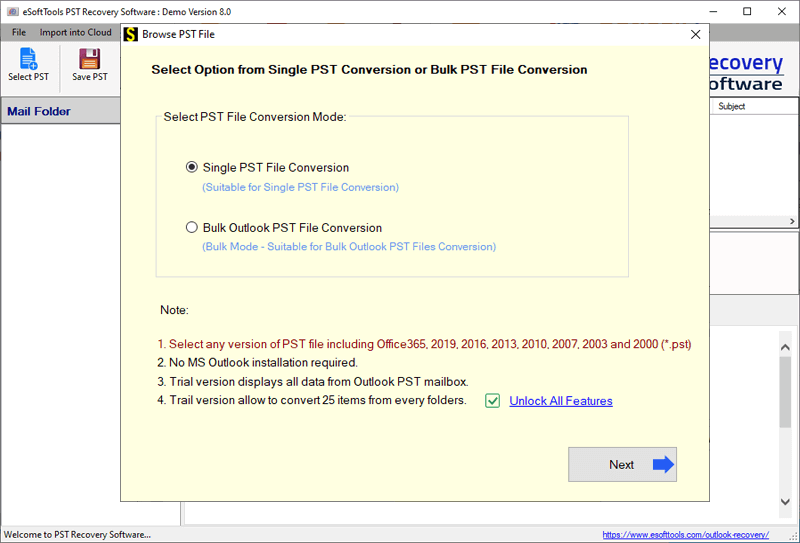
Step3: Select the PST file option to import the PST file
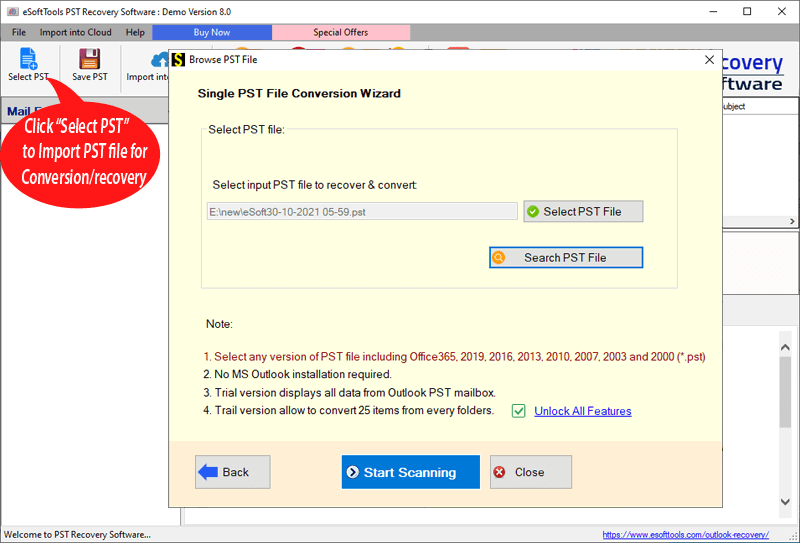
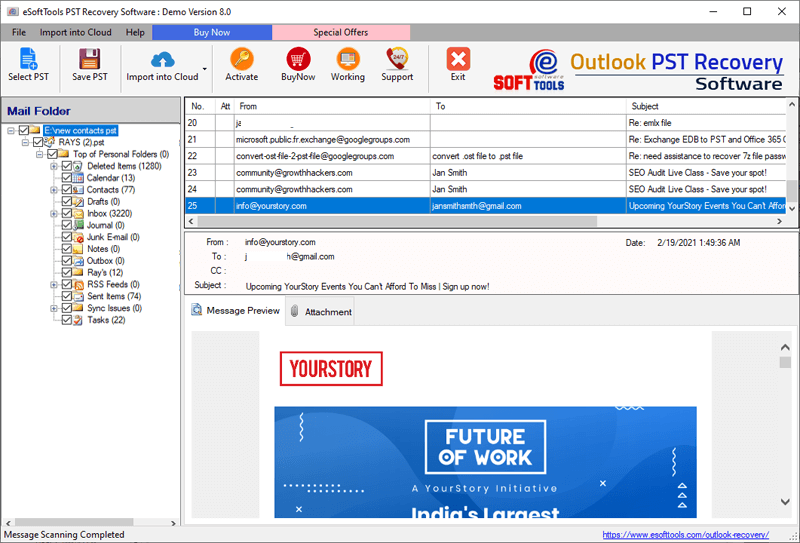
Step4: Scan the PST file and preview all the mailbox items

Step5: Preview of all the PST items of email, contacts, calendar, notes, tasks, journals
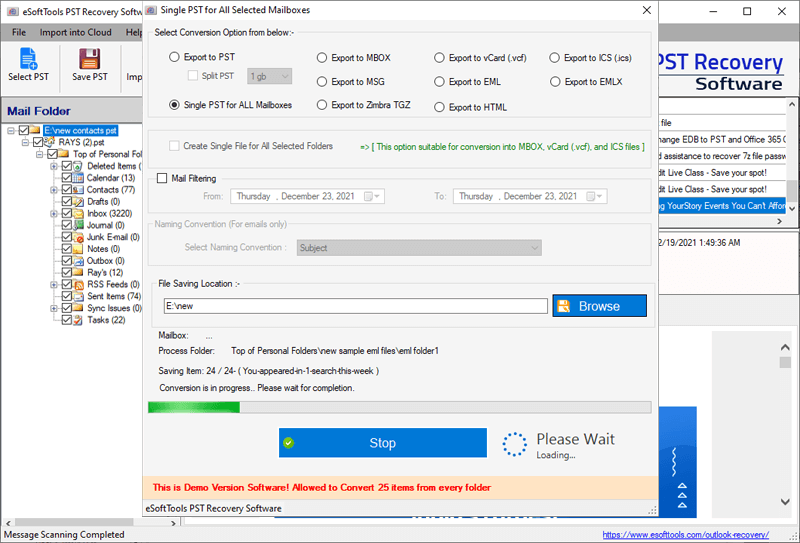
Step6: Convert PST file into multiple conversion formats: new PST, MBOX, vCard, ICS, EML, EMLX, and HTML etc.

Step7: Now save the PST file at your desired location

No Comments yet!