Do you want to transfer/export Gmail emails to another Gmail account? If so, reading the following article will answer your question. Here, we’ll only explain the entire process.
Overview
Gmail is a web-based email application that provides an environment for sending and receiving emails. The creator of this webmail service is Google, one of the most admired brands in the web and IT industry.
The Gmail app has gained immense popularity worldwide. It has now become every user’s primary means of sending emails. Its advanced features and interactive interface are driving users’ adoption of the Gmail app.
Google allows users to configure and use multiple Gmail accounts without any hassle. Therefore, a single user can now use multiple Gmail accounts simultaneously.
When using two or more email accounts, sometimes users may face a situation where they need to transfer emails from one Gmail account to another.
When a user comes across this situation, at that time they need a solution to export Gmail emails to another Gmail account.
Also Read:- How to Export/Backup Gmail Emails to HTML files?
Direct Method to Transfer/Export Gmail Emails to Another Gmail Account
It’s now possible to transfer/export Gmail emails to another Gmail account. Users can do this directly with eSoftTools IMAP Backup & Migration software. This utility is specifically designed to transfer all emails from one Gmail account to another. It completes the email transfer task simply by entering the Gmail account information. This software also helps users transfer emails with complete security and a simple click.
Additional Features of IMAP Backup & Migration Software
- Directly transfer/export your Gmail emails to another Gmail account with this tool.
- Migrate email folders while maintaining their same folder structure and email properties.
- Migrate Gmail to Gmail as well as Office365, Yahoo, Yandex, iCloud, Zoho, and other email apps.
- It has the ability to back up emails from Gmail/IMAP accounts to the user’s local drive.
- The tool supports saving IMAP emails to file types like PST, EML, EMLX, MSG, HTML, MHTML, and MBOX.
- Allow users to create a new folder with a custom name to store emails.
- It has an interactive and easy-to-understand interface that makes the migration easy to complete.
- IMAP Email Downloader is available in all versions of Windows – 11, 10, 8.1, 8, 7, XP, Vista, etc.
How to Transfer/Export Gmail Emails to Another Gmail Account?
- Download IMAP Migration Tool for Windows and install it on your computer.
- Launch the IMAP Backup & Migration software on your Windows computer.

- Select the Gmail or G Suite option from the IMAP mail apps options.

- Enter the Gmail account email address and add the password of any third-party Google app.

- Enter all the required IMAP account details and press the “Login” button.
- Log in with your Gmail account and load all the mail folders of your Gmail account.

- Select the required mail folders and click the “Import to Cloud” button.
- Select the “Import to Gmail” option from the cloud import options.

- Enter your Gmail account email address and the third-party app’s password
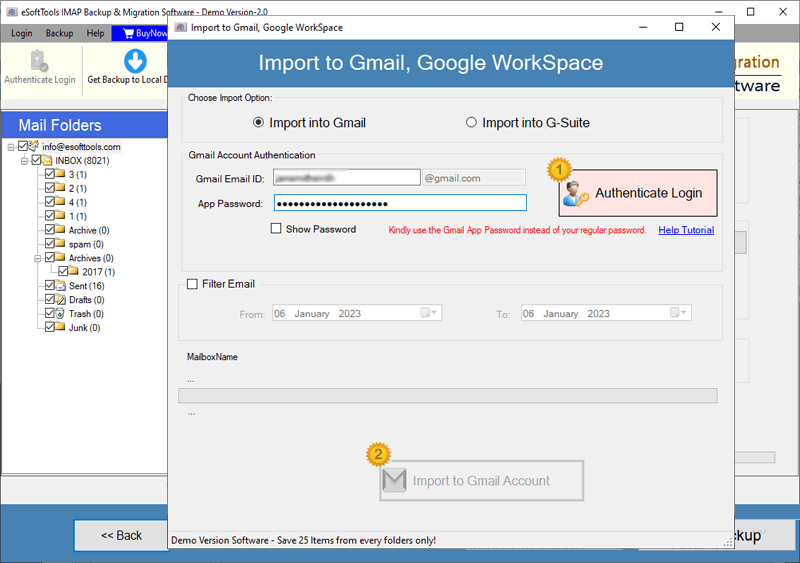
- Select the name of the input folder for migration and enter a custom name.
- Finally, click on the ‘Import to Gmail Account’ button and start the migration from Gmail to Gmail.

Conclusion
Many users use multiple Gmail accounts simultaneously. Many of them want to transfer their emails from one account to another. Now, using the above method, all users can do this safely and easily. Use eSoftTools IMAP Backup & Migration Software and securely transfer Gmail emails to another Gmail account. This tool comes with a demo version. All users can test all the software’s functions without purchasing a license.
FAQ
Can I save IMAP emails to separate files using this tool?
Yes, in addition to saving mailbox folders, users also get several different file options to save IMAP emails and attachments to separate files. Users can easily save individual emails to file formats like MSG, EML, EMLX, MSG, and HTML.
Can I use this software to save IMAP emails to EMLX files and use them for MAC Mail?
Yes, users will also get the option to save IMAP emails to EMLX files, along with other saving options. Users can easily save emails to separate EMLX files and access them through Apple Mail or Mac Mail on their macOS-based computers.
Can I use this software on the Windows 10 operating system?
Yes, this software supports all versions of the Windows operating system, including Windows 11, 10, 8.1, 8, 7, XP, Vista, and others.

No Comments yet!