Do you need to extract contacts from the OST file? If yes then read this blog and learn manual and automated methods to extract contacts from the OST file.
OST means Offline Storage Table. It is the database file of Outlook that stores data such as emails, contacts, calendars, tasks, notes, etc., in offline mode. When the internet is connected, MS Outlook automatically syncs the OST file with the Exchange server. Moreover, the OST file updates with mailboxes on the Exchange server. The OST files are stored locally on the computer, which means they don’t take up space on the Exchange server. Moreover, eSoftTools OST converter software can help you to recover Outlook contacts from OST file with exact formatting.
Why recover contacts from an OST file?
- Sometimes a user wants to migrate to a new email client so the user wants to extract contacts from the OST file.
- Sometimes, OST files get corrupted, so the user wants to recover Outlook contacts from OST file.
- Sometimes the user wants to access the contacts when are offline and isn’t able to open the OST file. In that case, if the user has a backup of contacts he can use it.
Methods to extract contacts from OST file
- Manual Method
- Automated Method
Manual Method
Additionally, MS Outlook has a built-in feature of Import and Export by which we can export data to PST and CSV file formats. In this case, we will export the contacts of the OST file into a CSV file.
- Open MS Outlook Software in your system.
- Go to File Menu and select the Open & Export option.
- Select the Import & Export option.
- Now choose ‘Import from another program or file’ and click Next.
- Then Choose Comma Separated Values as file type and click Next.
- Browse the location where you want to save the CSV file.
- Choose the option ‘Allow duplicates to be created’ and click Next.
- Choose the files/folders of the OST file that you want to convert to a CSV file and in this case, Contacts is the folder you have to select.
- Click Finish and the exporting process will continue.
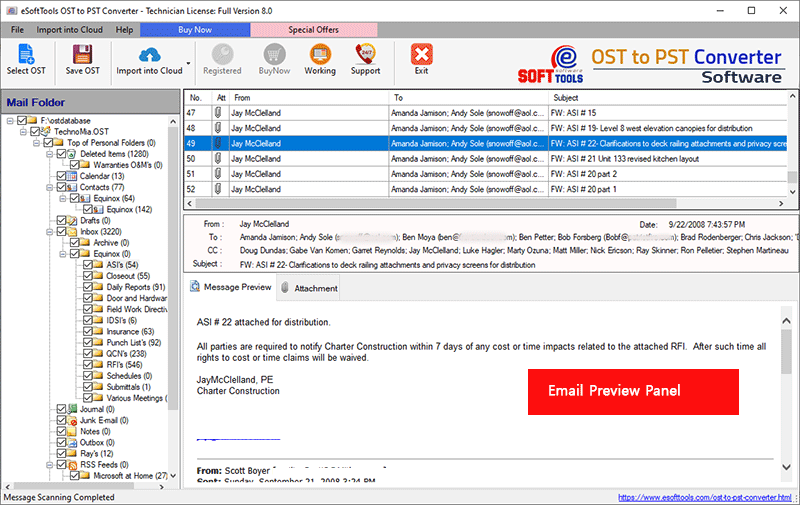
Automated Method eSoftTools OST to vCard converter software is the best and most reliable solution to recover contacts from OST files by extracting contacts to the vCard file. In the preview panel, you can see all the files and folders, including contacts of the OST file. After that, pick the contacts from the OST file structure and convert them into vCard format. It will include all the details of the contact in the VCF file. You can convert any file size of the contact file into VCF. The software converts contacts to a vCard file without Outlook installed. In the demo version of the software, you can convert 5 contacts from the OST file into a vCard.
Steps to Know How to Recover Outlook Contacts From the .OST File?
1. Download the Software
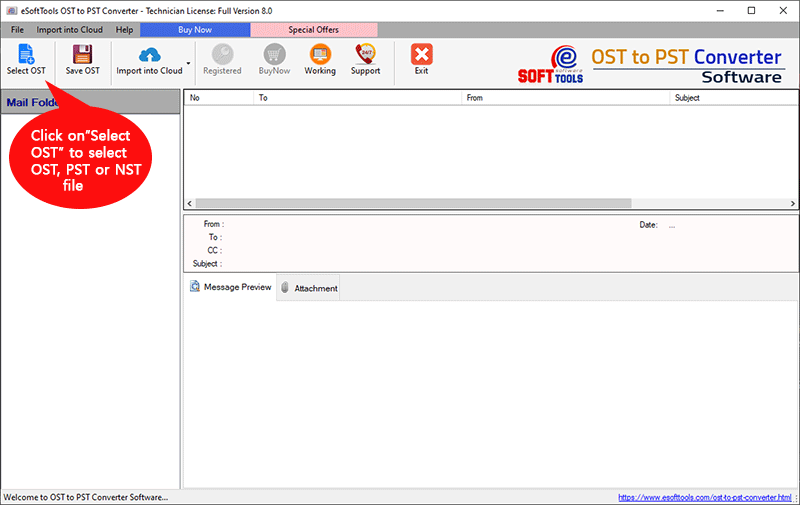
2. Choose Conversion mode and add selected OST file: Single/Bulk OST file conversion

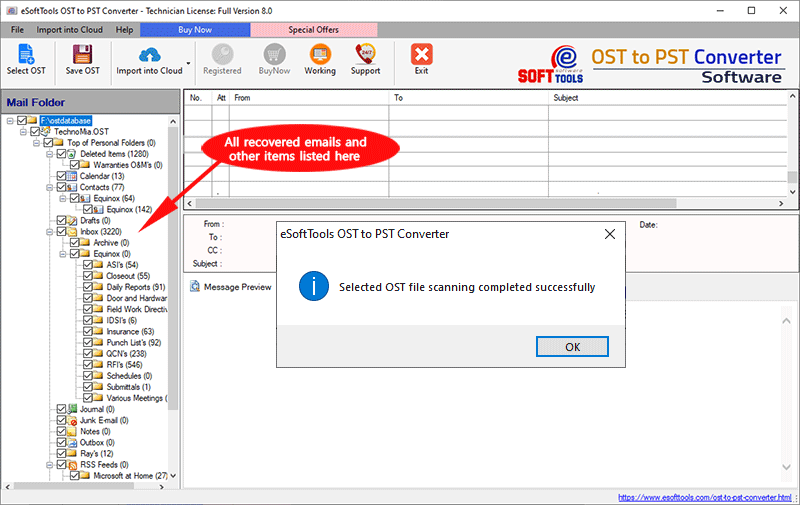
3. Software has completed the scanning process:-
4. Get a preview after completing the process
5. Choose the conversion option:-

6. Now, click on the conversion button and save the desired location

FAQ
s
Conclusion
Now you know manual and automated methods for conversion but manual methods have some limitations. You cannot use an OST file when it is orphaned or corrupted. The best and most reliable solution is to use eSoftTools OST to vCard converter to recover the contacts from the OST file.

No Comments yet!