Have you ever needed to open Lotus Notes archive files in Outlook but not gotten the methods to do it? If your answer is yes, then by reading this blog, you will know the methods to convert it.
The Lotus Notes archive file is the backup of the NSF file. The file extension of the archive NSF file is archived.NSF. NSF file means Notes Storing Facility. It is the database file that stores data like emails, notes, appointments, forms, and views. Sometimes a user needs to open Lotus Notes Archive file in Outlook; at that time, we need to convert the Lotus Notes archive files to PST files. PST is one of the file formats of Outlook to store data.
Why convert the Lotus Notes Archive file to an Outlook PST file?
- Sometimes users do not have the Lotus Notes Software on their computer. To open NSF files in their system, we need to shift files from Lotus Notes to Outlook.
- The maintenance cost of Lotus Notes Software is higher than MS Outlook. So some organisations are thinking of shifting from Lotus Notes to MS Outlook.
- MS Outlook can handle multiple mailboxes at a single time, but Lotus Notes can handle a single mailbox at a time.
- Security features of MS Outlook are more than Lotus Notes.
Also Read:- How to Import IBM Notes Archive to Outlook?
Methods to convert NSF files to PST files
- Manual Method
- Automated Method
Manual Method
Lotus Notes NSF files are not opened in Outlook directly. Lotus Notes NSF files are converted to a CSV file and then exported as a PST file in Outlook.
Steps to convert an NSF file to a CSV file
- Launch the Lotus Notes software on your system.
- Select and open the NSF file in Lotus Notes Software.
- Go to the ‘File menu’ and choose the ‘Export’ option.
- Browse the location where you want to save the CSV file.
- Name the file and choose Comma-separated values as the Save as type.
- Click the Ok button.
- Now you have the CSV file saved in your system.
Steps to convert a CSV file to a PST file
- Launch Outlook software on your system.
- Go to the ‘File menu’ and choose the ‘Open & Export’ option.
- After that, choose the ‘Import & Export’ option.
- Select the option ‘Import from another program’ and click the Next button.
- Select the option ‘Comma Separated Value’ and click the Next button.
- Browse the location of the CSV file and select the CSV file.
- Choose the option ‘Replace duplicates with items imported’ and click the Next button.
- Choose the destination where you want to save the file and click Next.
- Once the process is complete, click the Finish button.
Automated Method
In the automated method, we use third-party software such as eSoftTools NSF to PST converter software. This software converts NSF files to PST files quickly, easily, and with 100% accuracy. You can preview the emails of NSF files in the side panel of the software. Without the installation of MS Outlook software, you can easily convert the NSF files to PST files with this software. In a few steps, you can convert NSF files to PST files.
How to open a Lotus Notes Archive file in Outlook?
- Download and install the eSoftTools NSF to PST Converter Software.
- Click the Select NSF button to select NSF files from the system.
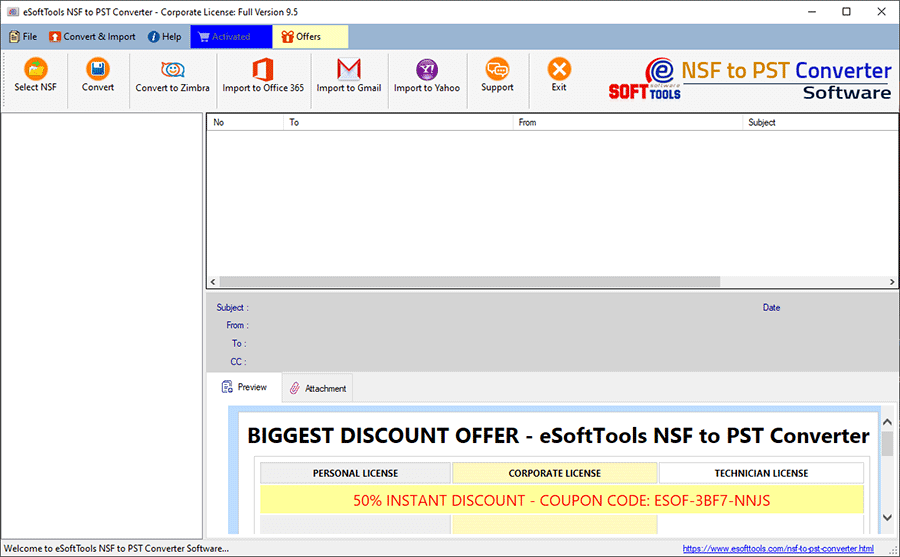
- The NSF conversion wizard will be open
- Single NSF file conversion: To select a single NSF file from the system for conversion.
- Bulk NSF file conversion: To select multiple NSF files from the system for conversion.

- Click the Start Scanning button to scan NSF files.

- See the Preview of NSF files’ contents, such as contacts, calendars, tasks, notes, etc.

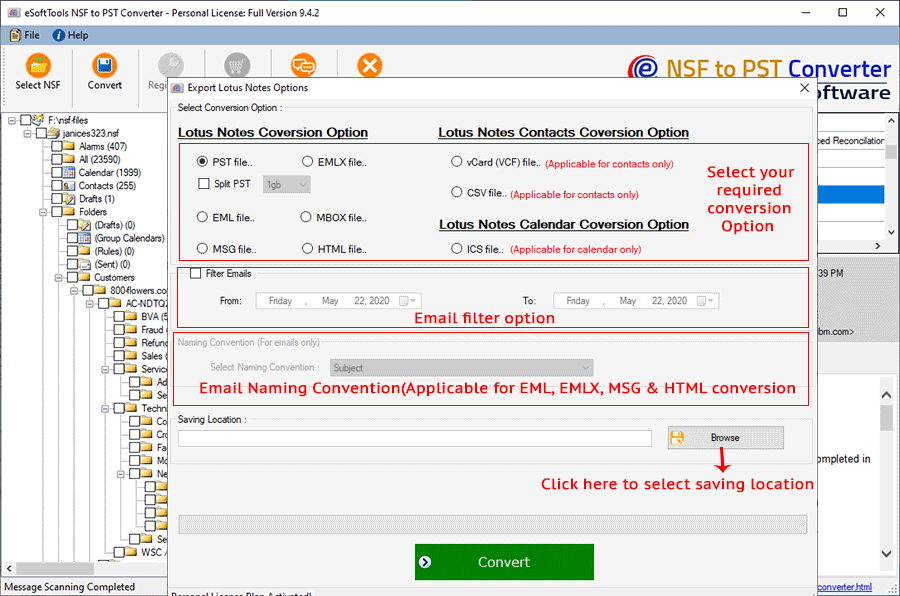
- Choose the PST files for conversion from the dropdown menu.
- Browse the location where you want to save the PST file.
- Click the Convert button and start the conversion.
Conclusion
We have mentioned both manual and automated methods in this blog. Manual methods are time-consuming and require technical knowledge to perform, and they are not 100% accurate. There are chances of data loss in manual methods, whereas automated methods are accurate and easy. No technical knowledge is required in the automated method because its graphical interface is easy to use.

No Comments yet!