For various reasons, many companies wish to transition from HCL Notes to MS Outlook. If you also wish to do so, this article is for your assistance. Herein, we shall explain the steps to easily export/migrate HCL Notes to Outlook. Let us begin.
Overview:- HCL Notes to Outlook
HCL Notes:- “HCL Notes” is an application that many companies use to process emails. It used to be called IBM Notes and Lotus Notes.
This allows you to manage email profiles and carry out numerous other functions, such as email sharing, contact management, scheduling calendar events, and a lot more.
Some of the great advantages of HCL Notes include smart security features, offline access, etc.
Outlook:- MS Outlook is a client-side email software, much like HCL Notes. The majority of HCL Notes’ functions are available in MS Outlook as well. Moreover, it allows you to manage multiple email profiles concurrently.
Some other advantages of MS Outlook are its easy-to-use interface, easy integration with other Microsoft services, etc.
Also Read:- How to Export Lotus Notes Email Folders in Outlook?
Why do some users want to export/migrate HCL Notes to Outlook
- Most users felt the Outlook interface was more convenient and easily accessible compared to the HCL Notes application.
- Based on their budget and requirements, businesses opt to migrate from HCL Notes to Outlook.
- Enables quick integration with other Microsoft services like MS Outlook, Teams, SharePoint, OneDrive, etc.
- Most people prefer Outlook to HCL Notes because it lets them multitask, and they trust Microsoft.
Most Reliable Way to Export/Migrate HCL Notes to Outlook
eSoftTools NSF to PST Converter software is an excellent solution for quick migration from HCL Notes to Outlook. It allows users to convert HCL Notes NSF database files into Outlook-compatible PST files. This software converts NSF files to PST format, including all mail folders, contacts, calendars, tasks, and other items. It can convert multiple NSF files at once using bulk conversion mode. For user convenience, this software also includes several smart features, such as folder selection, opening NSF files, mail filtering, and more.
How to Export/Migrate HCL Notes to Outlook?
- Download and run the eSoftTools NSF to PST Converter software (Windows).

- Press the ‘Select NSF’ button and select the conversion method:- Single NSF File Conversion, Bulk NSF File Conversion.
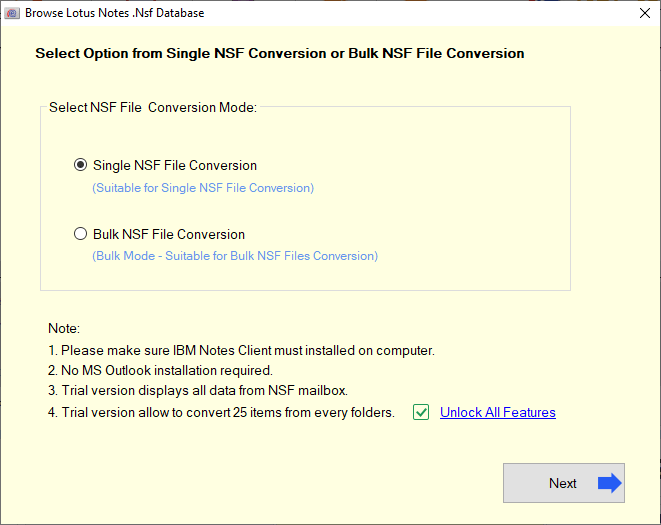
- After selecting the conversion mode, press the Next button.
- Attach the NSF file from its location and click the Start Scanning button.

- Load data from an NSF file and get a clear preview of all available items.
- Open folders, view the items inside them, and select the required folder.

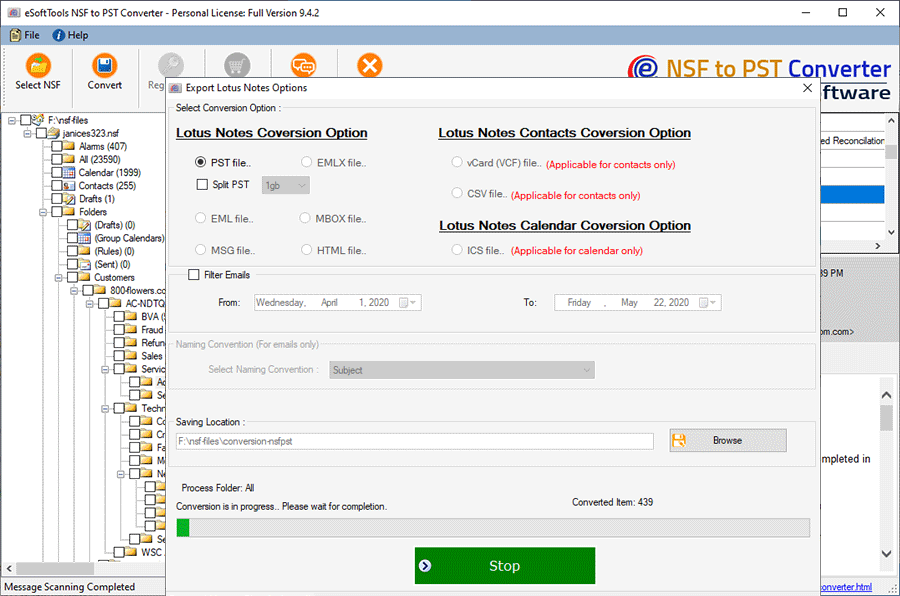
- Click the Convert button and choose the “PST File…” option from the next screen.

- Also, select and apply the Split PST option to reduce the size of the resultant PST file.
- Use the ‘Email Filter’ option and pick the date range for which you want to export emails. (Optional)
- Click the Browse button and choose a place to store the new PST files.
- Finally, click Convert to begin exporting HCL Notes to Outlook.
Conclusion
Many businesses export/migrate HCL Notes to Outlook for various reasons. In this article, we’ll discuss these reasons and explain the easiest way to accomplish this task. Enlist the help of eSoftTools’ NSF Conversion to PST tool and complete this migration effortlessly.

No Comments yet!