Are you looking to switch to Zoho Mail from another email client that stores messages in the MBOX format? But wondering how to do it easily? In this blog post, we’ll show you the easiest and best way to import MBOX into your Zoho Mail account.
Overview
MBOX is a popular file format for archiving mail folders that hold numerous emails and their attachments. Mozilla Thunderbird, Apple Mail, and various other email clients utilize MBOX files to save user emails.
Zoho Mail, on the other hand, is a cloud-based email service. It allows users to access their email accounts from the web. Zoho Mail is known for its user-friendly interface, robust security features, and seamless integration with other Zoho productivity tools.
Also Read:- How to Convert MBOX to IMAP Easily and Securely?
Why Import MBOX to Zoho Mail account?
- For those migrating to Zoho Mail from an email client that stores messages in the MBOX format, importing MBOX files is a great way to make the transition easy and hassle-free.
- Zoho Mail is a cloud-based email service. Importing MBOX data into it lets users securely store their data on cloud servers. This enables users to access their email from any device and location.
- Zoho Mail provides mobile apps for both Android and iOS devices. Users can access their emails while traveling by migrating emails from MBOX files to Zoho Mail.
Quick Solution to Import MBOX to Zoho Mail account
Users can import MBOX emails directly into a Zoho Mail account using the eSoftTools MBOX to IMAP migration tool. This free solution, available for Windows-based devices, allows you to easily transfer MBOX files to Zoho Mail. Experts recommend this tool for quickly completing bulk email migrations from MBOX files. The MBOX to Zoho Mail migration will take very little time to complete.
How to Import MBOX to Zoho Mail account?
- Download, install, and launch eSoftTools MBOX Converter software.

- Press the Add File/Folder button and then choose the method to add the file: –
- Select MBOX File: – Add MBOX file from a specific location in your drive.
- Select MBOX Folder: – Select a folder that contains multiple MBOX files.
- Auto-load Thunderbird profiles: – In one click, load all MSF/MBOX files from Thunderbird’s default storage location.
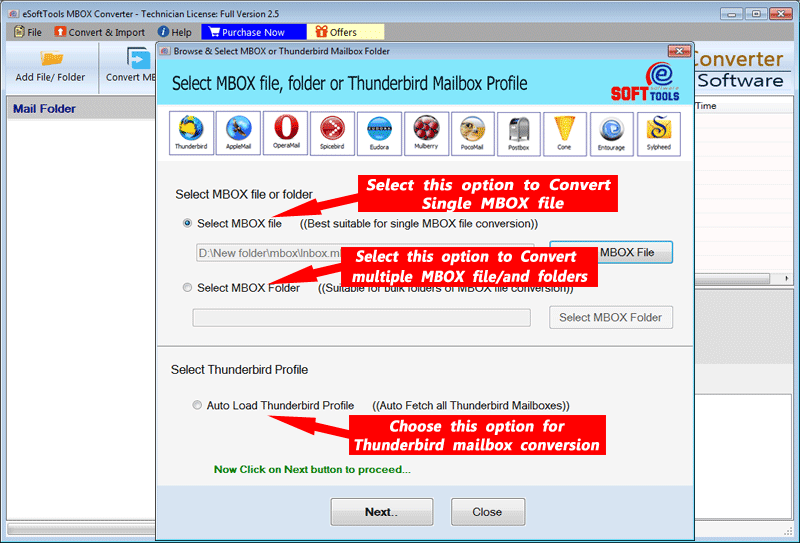
- Select the file selection option, add MBOX files/folders, and press the Next button.
- Load all selected folders and files into the software to see their contents.

- Select the required folders and click on the “Import to Cloud” >> “Import to IMAP” button.
- Enter the Zoho Mail account information – email address, password, port, and hostname.
- Apply other settings – “Input the folder name for migration” and “Mail filtering”.
- Finally, click Convert and begin importing your MBOX files into Zoho Mail.

Key Features of eSoftTools MBOX to Zoho Mail Migration Software: –
- Complete email migration from MBOX to Zoho Mail in a simple process. Quickly transfer all emails and attachments from MBOX files to Zoho Mail in just a few clicks.
- Export data from unlimited MBOX files in a single process. Export emails from all your MBOX files to Zoho Mail at the same time.
- Get a preview of the internal data of the merged MBOX files. View emails from the MBOX file in their original format, including all related information.
- Select specific folders from the list of all added folders containing MBOX files and perform the migration with those selected folders.
- Besides Zoho Mail, transfer MBOX emails to Office365, Gmail, Yahoo Mail, and all other IMAP-based cloud/webmail apps.
- Apart from MBOX to Zoho Mail migration, this software also supports converting MBOX to PST, MSG, HTML, MBOX, MHTML, NSF, EML, and EMLX files.
- For MBOX conversion and migration, this software is easily accessible on all versions of the Windows operating system – Win 11, 10, 8.1, 8, 7, XP, Vista, and below.
Conclusion
Migrating from an email client using the MBOX format to Zoho Mail is a straightforward process. With the simple step-by-step guide provided in the blog post above, you can easily import MBOX to Zoho Mail account. Following the migration, users can seamlessly continue using emails from their MBOX files within Zoho Mail.

No Comments yet!