Are you fed up with corrupted OST files, not getting the method of recovering OST files and want to know how to get the best tool for a corrupted OST file? Read this blog to learn methods of converting OST files to PST files.
What is a corrupted OST file?
Whenever the Exchange Server crashes, OST files attempt to synchronize with the server, but the synchronization does not occur, and the OST files become orphans and are corrupted.
Why is there a need to convert OST to PST ?
- Exchange Server Crashdown : Sometimes due to virus attack or malicious activity on the server makes the server crashdown. Files on the server get corrupted due to virus attack. When Outlook OST files get synchronized with the server these files also get corrupted. In order to recover corrupted OST files we need to convert them to PST.
- Accidental Deletion: However, Email files on the server sometimes get accidentally deleted by the user. When Outlook OST files get synchronized with the server, they are also removed from the local computer. So to get removed OST files we need to convert them to PST.
- Migration: When we need to migrate Outlook files from one computer to another, OST files do not transfer from one computer to another. We need to convert OST files to PST files to migrate them from one computer to another.
- Exchange Server downtime: When due to maintenance issues, exchange server downs then we are not able to access our OST files. To access our OST files during downtime we need to convert OST files to PST files.
Methods to convert OST to PST
- Manual Method
- Professional Method
Manual Method 1: Import/Export Wizard
- Open MS Outlook 2019 on your system.
- Go to File>Open & Export>Import & Export.
- Select ‘the Export to a File’ option and click the ‘Next’ button.
- Select ‘Outlook Data File(.pst)’ and click the ‘Next’ button.
- Select the file to import from and check the ‘Include subfolders’ option.
- Browse the location where you want to save the file and click Finish.
Manual Method 2: Drag and Drop method
In the drag and drop method, the user creates a new PST file, and in this file, the user drags all items of the OST file and drops them into the PST file. However, the software does not drag contacts, calendars, tasks, and similar items; users must copy these folders and paste them into the PST file.
Professional Method
Therefore, the professional method is to use the Regzion OST to PST converter Software. Moreover, this software can convert OST files to PST files quickly and efficiently. As a result, the software converts OST files to PST files without any data loss. This OST to PST converter software’s advanced features can convert OST files to PST files smartly. In the preview panel, you can see the files and folders of OST files after scanning. You have the option of splitting large-sized OST files into multiple PST files. It provides the feature of filtering, where you can filter emails by date. First, you must enter the start and end dates of the email, then the software filters all emails based on those dates.
By following simple steps, you can convert OST to PST easily. Get this software to know how to get the best tool for a corrupted OST file and convert Outlook OST to PST file in minutes.
- Download Regzion OST to PST Converter Software and install it.
- Launch the software into your computer and press “Select OST” button
- Add OST files from local drives and load them in the OST Converter.
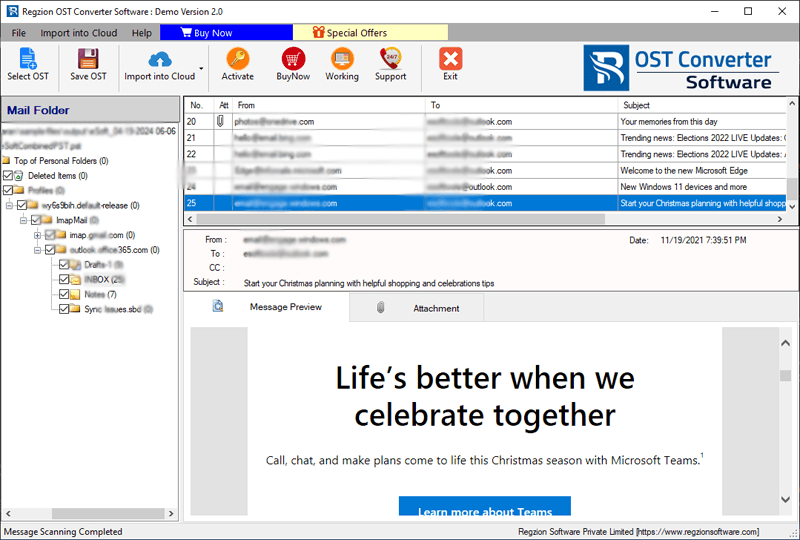
- In the side panel you can preview imported OST files and folders.
- Select necessary mailbox folders from OST files for exporting them.
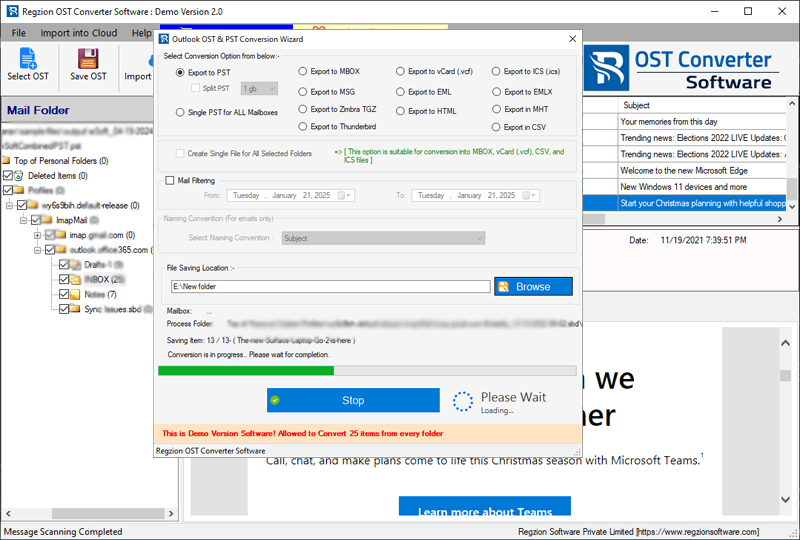
- Press the ‘Save OST’ button and select the ‘Export to PST’ radio button from the OST conversion options.
- If you want to split an OST file select ‘Split PST’ option and choose a size from different size ranges.
- Browse the location where you want to save the PST file into your computer.
- Choose the ‘Mail Filter’ option if you want to filter email (based on date).
- Click on the ‘Convert’ button and begin the process of OST to PST conversion process.
Steps to Know How to get the best tool for a corrupted OST file?
1) Download and “Select the OST” file
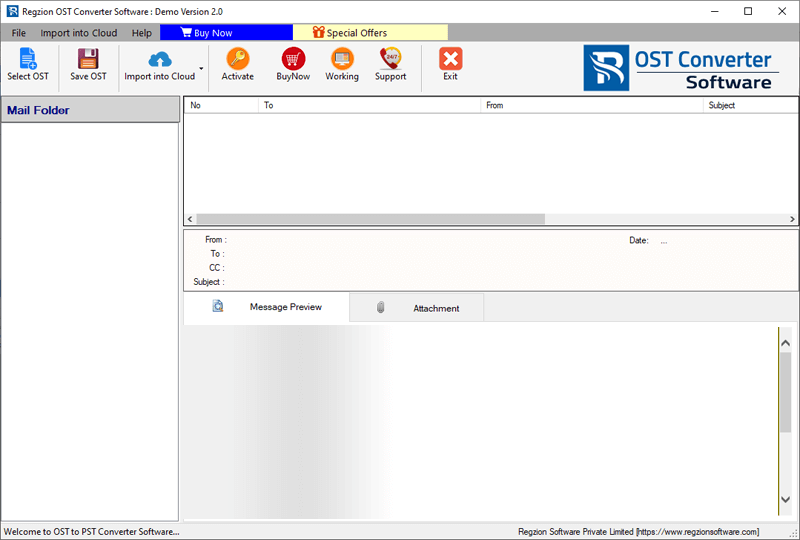
2) There are two types of “Methods”
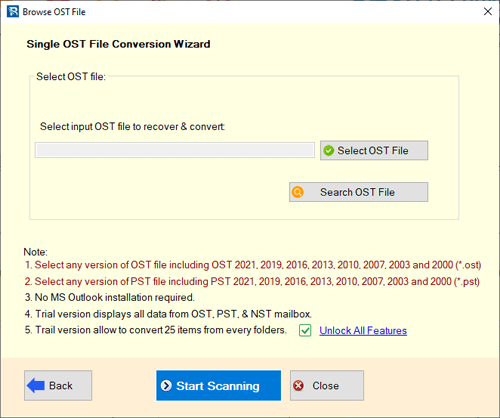
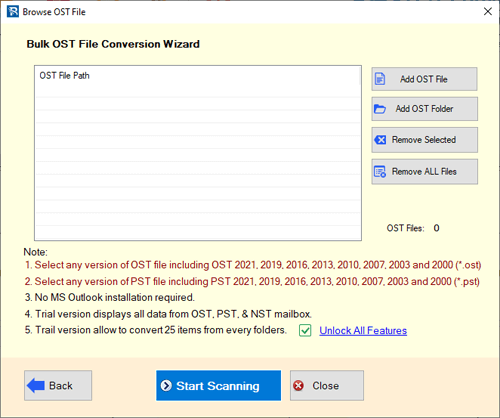
Single and Bulk OST file Conversion
Single OST file Conversion
Bulk OST File Conversion
3) Scanning OST file
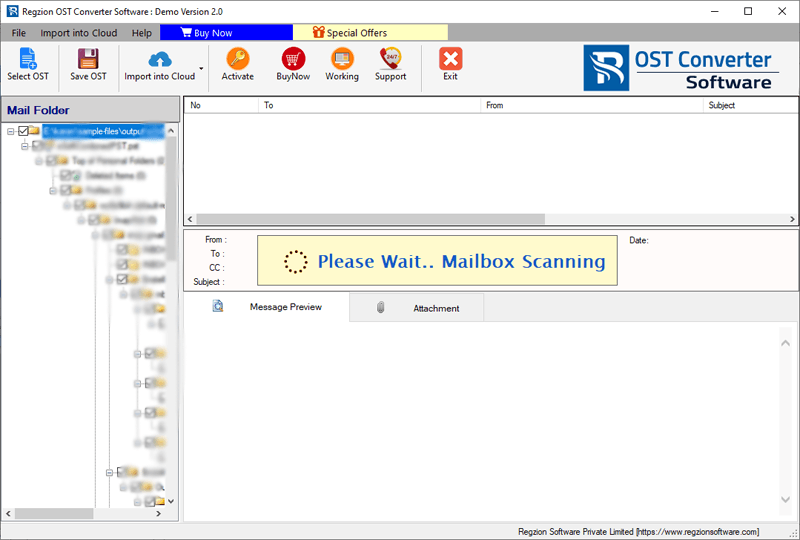
4) Get a Preview of OST Mailbox Item
5) Convert and Save the OST file into Available formats:
FAQ of OST Converter Software
Ans. Yes, a demo version of the software is available for users.
Ans. Yes, the software supports conversion into multiple file formats.
Ans. Yes, the software is simple to use and suitable for both technical and non-technical users.
Ans. Yes, our support team is available to help users whenever assistance is needed.
Yes, the software works smoothly on Windows 10.
Conclusion
You can convert OST to PST using a manual method, but it is advisable to use the Regzion OST to PST converter software. There are limitations of manual methods; data is lost by these methods, but using professional methods, you can convert OST to PST without data loss.

No Comments yet!