Many users want to download emails from their IMAP accounts to their local drive as MSG files. If you’re looking for the fastest and most reliable way to do this, you’ll find the solution here. In this blog post, we’ll explain the best way to export IMAP emails to MSG files. Let’s get started…
Overview
Nowadays, people around the world prefer web-based email applications like Gmail, Yahoo Mail, and Outlook.com to send email. All of these cloud- or web-based mail applications operate on the IMAP protocol.
IMAP email apps let users view their email without downloading it to their device. People can easily access their email profile data from different places simultaneously.
Furthermore, users won’t face any operating system compatibility issues when using IMAP accounts. This is because users only need a web browser to open and use IMAP email accounts. Users can access their IMAP accounts from any device via their web browser.
Using IMAP-based email accounts offers numerous benefits and advantages. Yet, occasionally, users find it necessary to back up their IMAP email data. Under these circumstances, they choose to save their IMAP emails as Outlook MSG files.
Also Read: How to Export & Save IMAP Emails to HTML files in batch mode?
Why Download IMAP Emails as MSG files
- An internet connection is required to view emails from an IMAP account. Users will be unable to view IMAP emails without an internet connection. However, by saving the email as an MSG file, users can view emails from their IMAP account locally using MS Outlook.
- Users often encounter the problem of accidentally deleting emails from their IMAP accounts for a variety of reasons. To recover deleted emails in such situations, users often prefer to save the emails locally as MSG or another file type.
- A lot of users need to bring certain emails from their IMAP account into their Outlook profile. In such cases, this procedure of exporting from IMAP to an MSG file turns out to be helpful for users.
Automated Method to Download/Export IMAP Emails to MSG files
The fastest and most effective way to export IMAP emails to MSG format is to use the automated eSoftTools IMAP Backup & Migration tool. Users can easily back up emails from IMAP accounts to MSG and several other file types. It completes the IMAP email backup process while preserving all email information. It can easily export emails from email folders of one or more IMAP accounts simultaneously. The IMAP backup tool allows users to download emails from their IMAP accounts. The software provides several file types for saving emails, including PST, EML, EMLX, MSG, HTML, MHTML, and MBOX.
How to Download/Export IMAP Emails to MSG files?
- Get the IMAP backup software downloaded, installed, and running on your Windows computer, and proceed with the steps below:
- Starting from the first screen, pick your email application from the IMAP server app list.
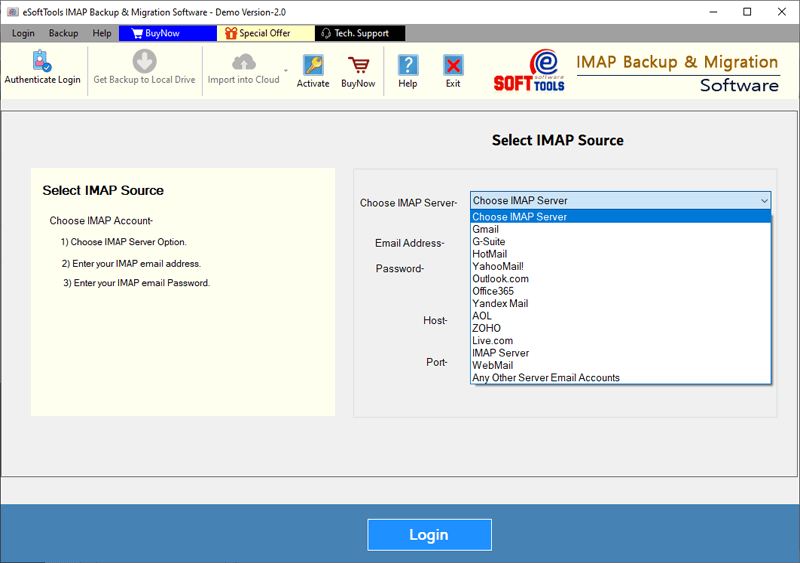
- Enter the email address, password, port, and hostname of the IMAP account.

- Tap the login button once you have added the IMAP account info.

- Once you log in to the software, load all the mail folders for the IMAP account.
- Pick the necessary mail folder and select the Save as MSG option from the export settings.

- Filter emails by date or naming convention.
- Choose the location where you want to save the resulting MSG files.

- To finish, click the Save Backup button, and the export of IMAP emails to MSG files will commence.

Features of IMAP Backup and Migration Software
- Easily export emails from an IMAP account’s mail folder to a local drive.
- Export IMAP account emails to MSG, HTML, EML, EMLX, MHTML, MBOX, PST, PDF, and Thunderbird mail formats.
- Additionally, it supports migrating emails from one IMAP account to another account/webmail app.
Enable users to export emails exclusively from chosen folders by selecting the necessary mail folders. - Export and download emails without losing any of their formatting or properties.
- It offers a mail filtering option to retrieve emails within a specific date range from an IMAP account.
- Provides a naming convention option to provide custom names to the resulting files.
- This accomplishes the backup and migration process without losing a single fragment of user data.
- It is built for all versions of the Windows operating system, including Windows 11, 10, 8.1, 8, XP, Vista, and others.
Conclusion
Saving IMAP emails locally as Outlook MSG files offers numerous advantages. Consequently, many users consider this the easiest way to get the job done. In this article, we have explained the top strategy for exporting IMAP emails to MSG files. To find out more, try the free demo version of eSoftTools IMAP Backup software.

No Comments yet!